Check out what's running under the hood - for a better use of Github Copilot
I have tried out different AI tools for development and admitted that how powerful and intelligent they could be, especially after knowing better how to use them, which really require efforts and experiments. As using them more and more, I realize that the importance of knowing how tool works under the hood, which can somewhat explain why it output like that. Then starting from there, you can think about what to modify and how to run it better and eventually find out your best way to run it.
Github Copilot is tool that my company allows to use and so far it is the one I use most. It is easy to get hands-on but the native modes it provides are not excellent frankly. But the good things are it allows user to customize it, unlocking the possibilities to perform better as you wish. While still in the middle of pursuing my own setup, at this point, I would like share how to understand better how GH Copilot works and hopefully this can be inspiring. The following tips is about running it in VSCode.
Check the full conversation - everything is a LLM call
Full conversation here means the messages sent to LLMs, including system prompts and user messages, which unfolds everything as a LLM call happening in an IDE, like you send a message in the chat interface to any LLM. This may sound less interesting and magical but it is the truth.
By opening the Output view and choose Github Copilot Chat, you could see all the interactions, or call them requests.
For each request, the model that is called and the mode you are using can be easily spotted:
ccreq:*<xxxxxxxx>.copilotmd* | unknown | claude-sonnet-4.5 | 2881ms | [panel/editAgent]
The most mind-blowing part is the log file, which contains everything you want to know and it is there open for you.
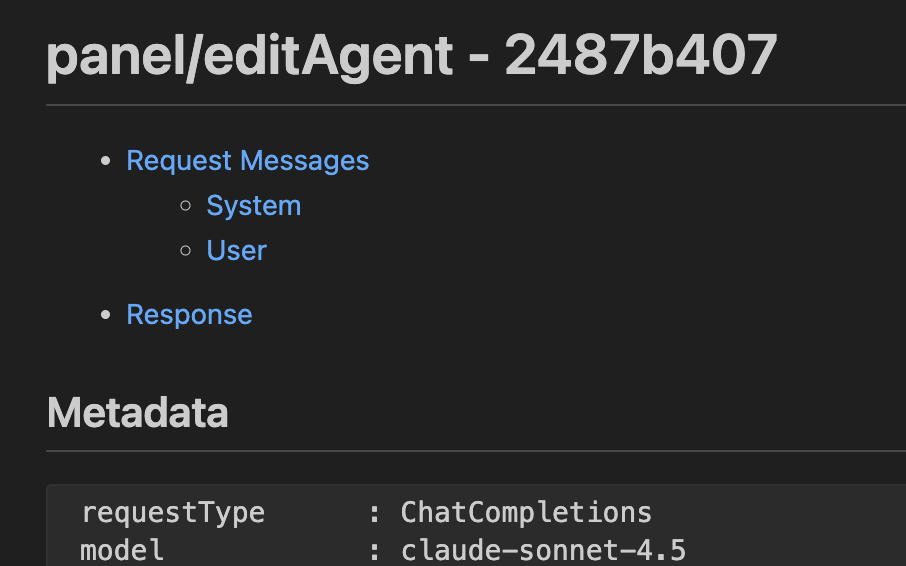
The file contains Metadata and all messages including the system prompts and also user messages. Details of the LLM call is disclosed from the metadata, from where you can know token consumption and response time easily.
requestType: ChatCompletions
model: claude-sonnet-4.5
maxPromptTokens: 127997
maxResponseTokens: 16000
location: 7
otherOptions: { "temperature": 0, "stream": true }
intent: undefined
startTime: <>
endTime: <>
duration: 85730ms
response rate: 64.49 tokens/s
ourRequestId: <>
requestId: <>
serverRequestId: <>
timeToFirstToken: 4330ms
resolved model: claude-sonnet-4.5
usage:
  {
    "completion_tokens": 5629,
    "prompt_tokens": 89884,
    "prompt_tokens_details": { "cached_tokens": 10289 },
    "total_tokens": 95483,
  }
Messages are much more interesting, as the plaintext of system prompts are just exposed to your eyes and how other instruction files are organized. For example, AGENTS.md is included in the system prompt as attachment as follows:
<instructions>
<attachment filePath="<WORKSPACE>/AGENTS.md">
[CONTENT OF AGENTS.MD]
</attachment>
</instructions>
Information like <environment_info>, <workspace_info> are included there similarly to provide context. Doesn't this look like a API call? Maybe it is a bit complex but that's how it works. As a user, we can carefully review it to get a better understanding of how information and context are structured, and see whether there are any inaccurate or contradictory information that can be further improved - and you SHOULD really do it - as the system prompt itself is too general to be good enough.
BTW, as the VSCode extension of GH Copilot is open source, system prompt be check out from its repo, too.
Context windows of LLMs in GH Copilot
One thing I often encounter is that after a few chats, it will run Summarized conversation history and take >1 minutes. That's annoying especially when you feel like you are almost there to reach the finish line. I cannot stop thinking how big are the context windows are but couldn't find the result from official documentations. Luckily, there's a way to check it out, from the same view mentioned above.
Actually, the first log is an API call to request your available models and the response reveals the capabilities:
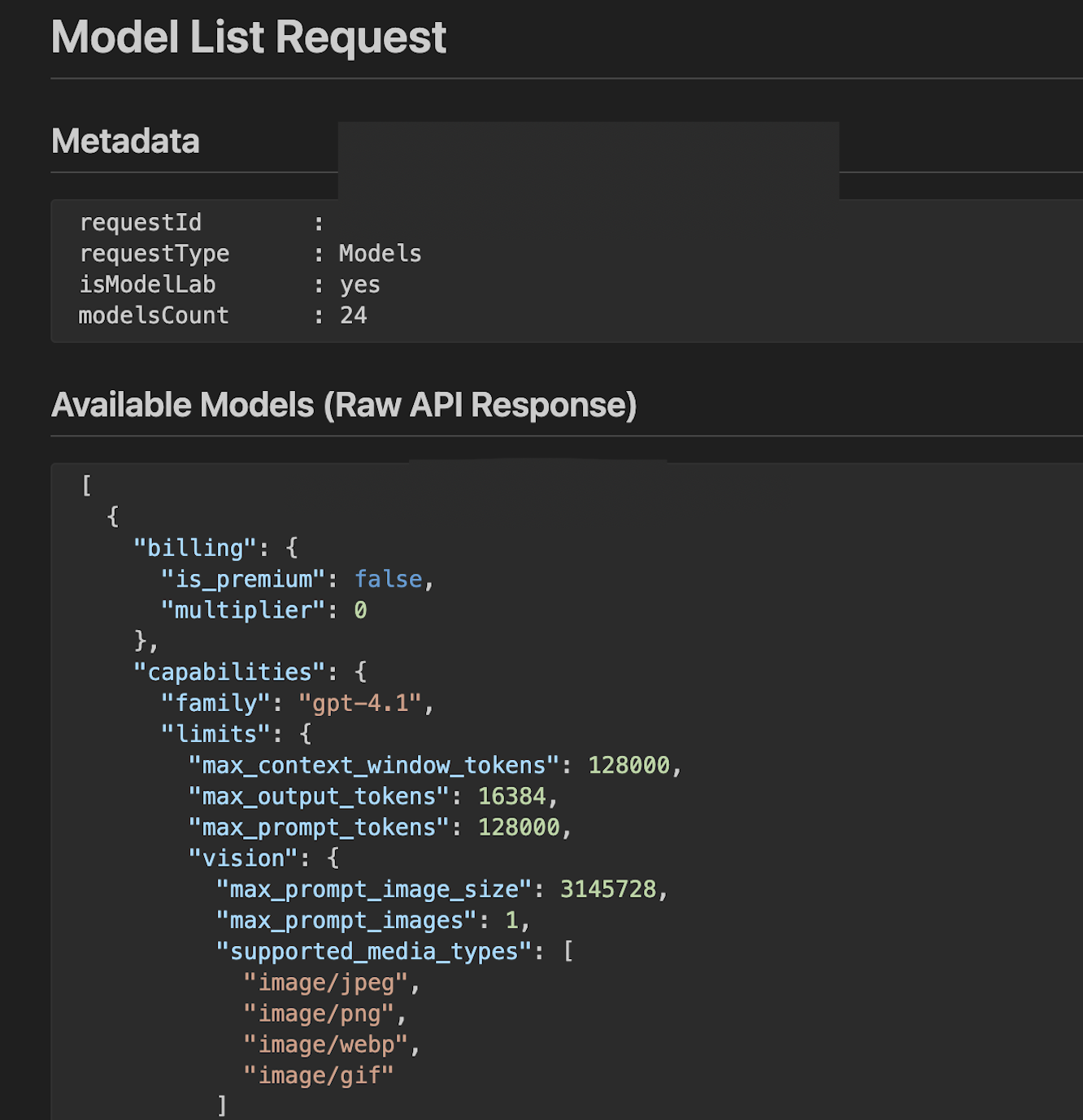
There are three parameters and I just quick ask LLM to explain them if you are interested.
LLM explanation:
These parameters define the token capacity limits of an LLM, controlling how much text the model can process and generate in a single interaction.
max_context_window_tokens This is the total maximum number of tokens (216,000 in your case) that the model can "remember" or process at one time, including both your input prompt and the generated output. The context window determines how much information the model can consider when generating responses. A larger context window enables the model to handle longer documents, maintain longer conversations, and incorporate more information into its responses.
max_output_tokens This limits the maximum number of tokens the model can generate in its response (16,000 tokens). This is a cap on the output length - the model will stop generating text once it reaches this limit. Since roughly 1,000 tokens equals about 750 words, your 16,000 token limit translates to approximately 12,000 words of output.
max_prompt_tokens This specifies the maximum number of tokens allowed in your input prompt (128,000 tokens). This is the text you provide to the model, including your instructions, questions, and any context you want the model to consider. The constraint ensures that you leave sufficient room within the context window for the model's output.
How They Work Together These three limits are interconnected:
max_prompt_tokens+max_output_tokensmust not exceedmax_context_window_tokens. In your configuration, the prompt (128K) and output (16K) limits sum to 144K, which is well within the 216K context window, providing flexibility in how tokens are allocated between input and output.
The context window of gpt-5 and gpt-5-codex is 400k and the max prompt/output token is 128k, which is the same as what OpenAI offers. But for Claude models, the capacity is lower. The max prompt token for Sonnet-4/4.5 is 128k, while the max output token is only 16k, and the max context windows of Sonnet-4 and Sonnet-4.5 are 216k and 144k, respectively.
It happens quite often during the (customized) agent mode, some instructions added in AGENTS.md are forgotten and possibly it is caused by this.
The secrets behind inline code autocompletion can also be uncovered by checking the logs.
Summary
Before knowing what's behind, I kind of enjoy but somehow still suspect how AI tools work for coding. Glad to learn from the logs and start from there I could have a better control and direction to make a better use of it. Sadly no way to check this out from Cursor side. If you are also a user of GH Copilot hopefully this post can be helpful.